Annotating with Hypothesis on the CoARA Assessment Idea Catalogue
What is Hypothesis? Hypothesis is an open-source web annotation tool embedded directly in this site. It lets you highlight text, add comments, and share notes — publicly or within a group — without leaving the page.
You can use Hypothesis to add comments and feedback to all idea and other pages of the CoARA Assessment Idea Catalogue
1. The Hypothesis sidebar
When you open any page of the CoARA Assessment Idea Catalogue, you will notice two small icons on the right-hand edge of the browser window:
| Icon | Action |
|---|---|
 |
Show / hide existing annotations on the page |
 |
Open the full Hypothesis sidebar panel to add a new annotation |
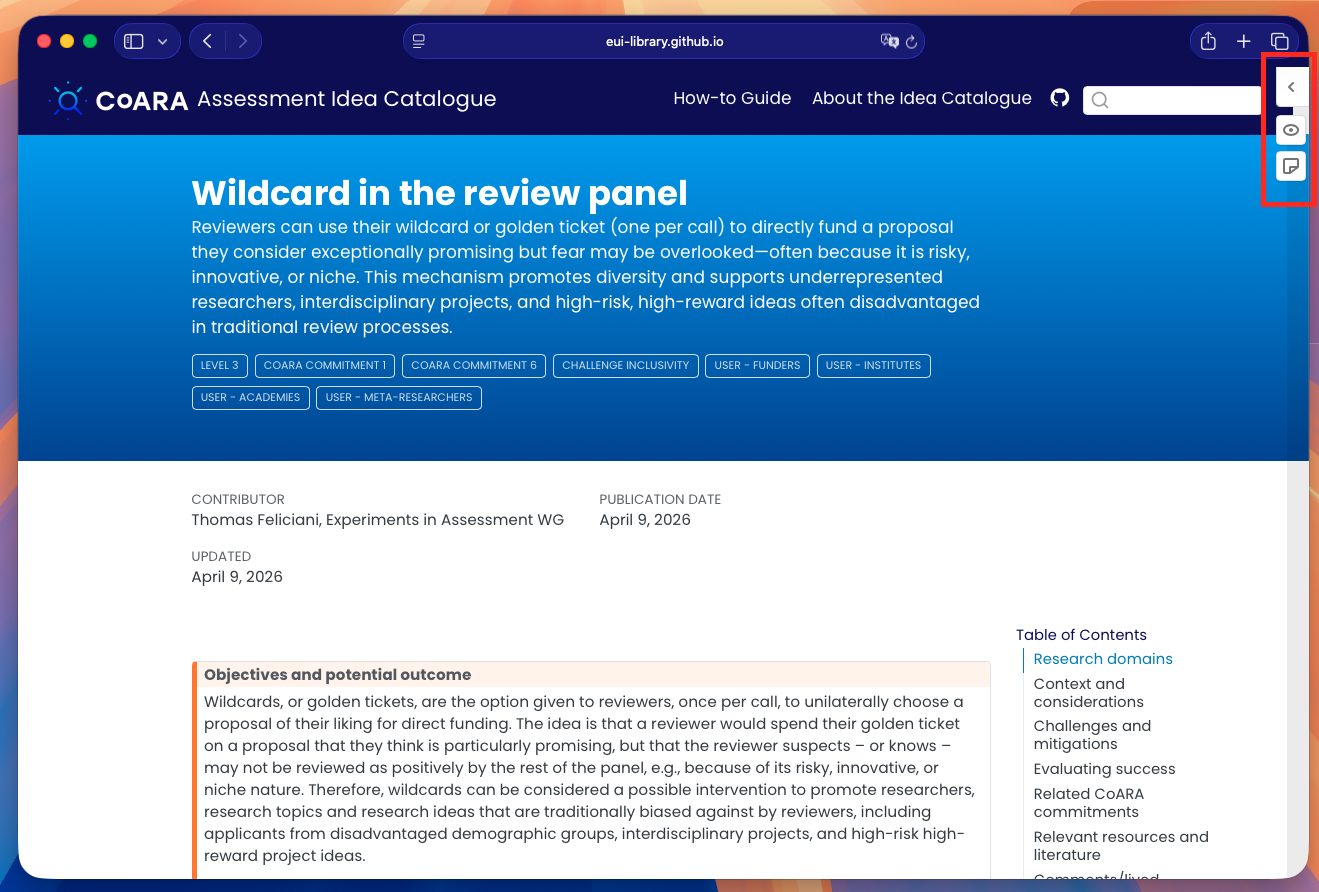
Click the arrow ( › ) at the top of the icon strip, or either icon, to expand the sidebar.
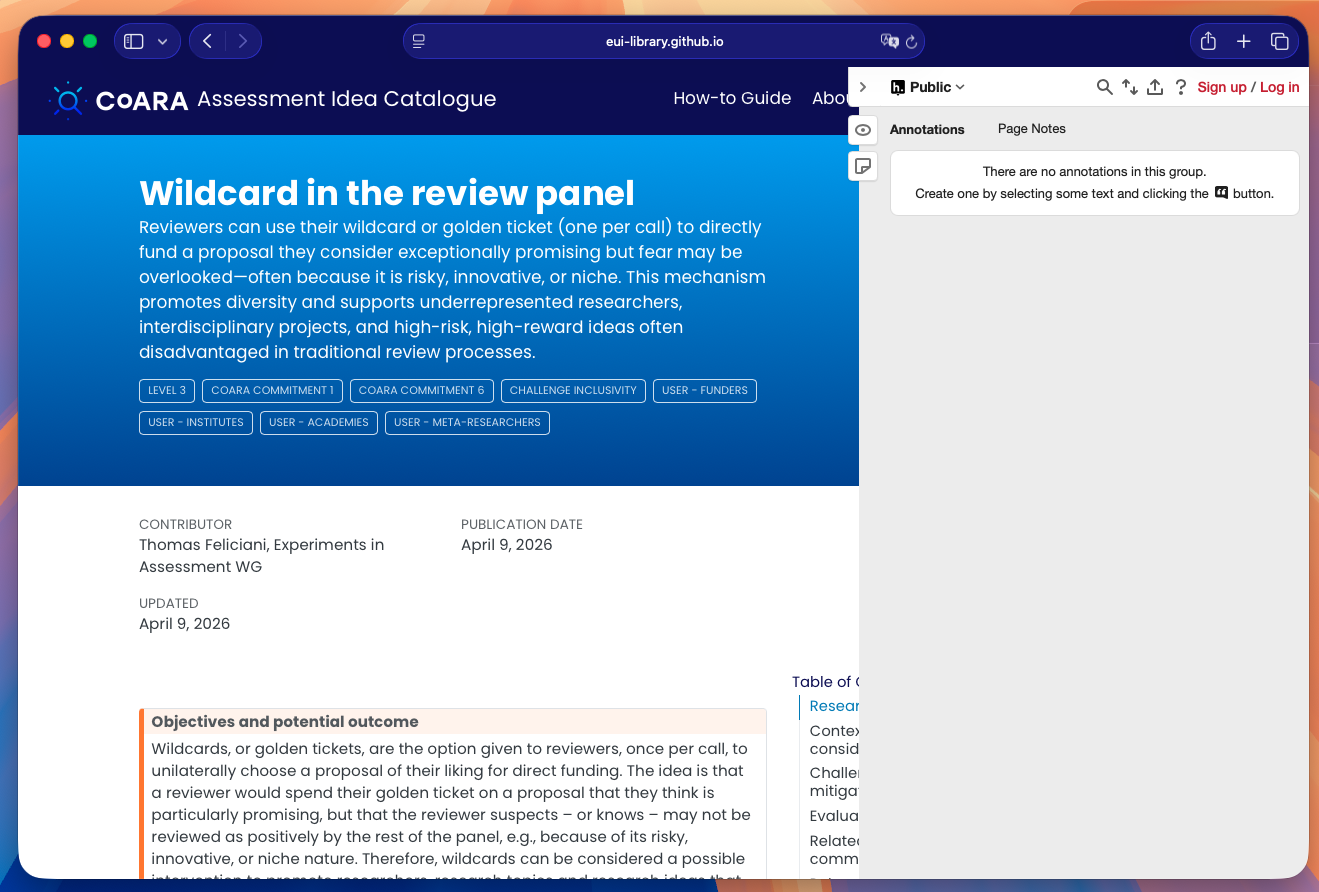
2. Creating a free Hypothesis account
To annotate you need a (free) Hypothesis account.
- Click Sign up / Log in in the top-right corner of the sidebar.
- Choose Sign up and complete the registration form on hypothes.is.
- Return to the catalogue page — you will now be logged in automatically.
Tip: You can also log in with an existing Google account.
3. Adding an annotation (inline comment)
- Select any text on the page by clicking and dragging over it.
- A small toolbar appears above the selection with two buttons: Annotate and Highlight.
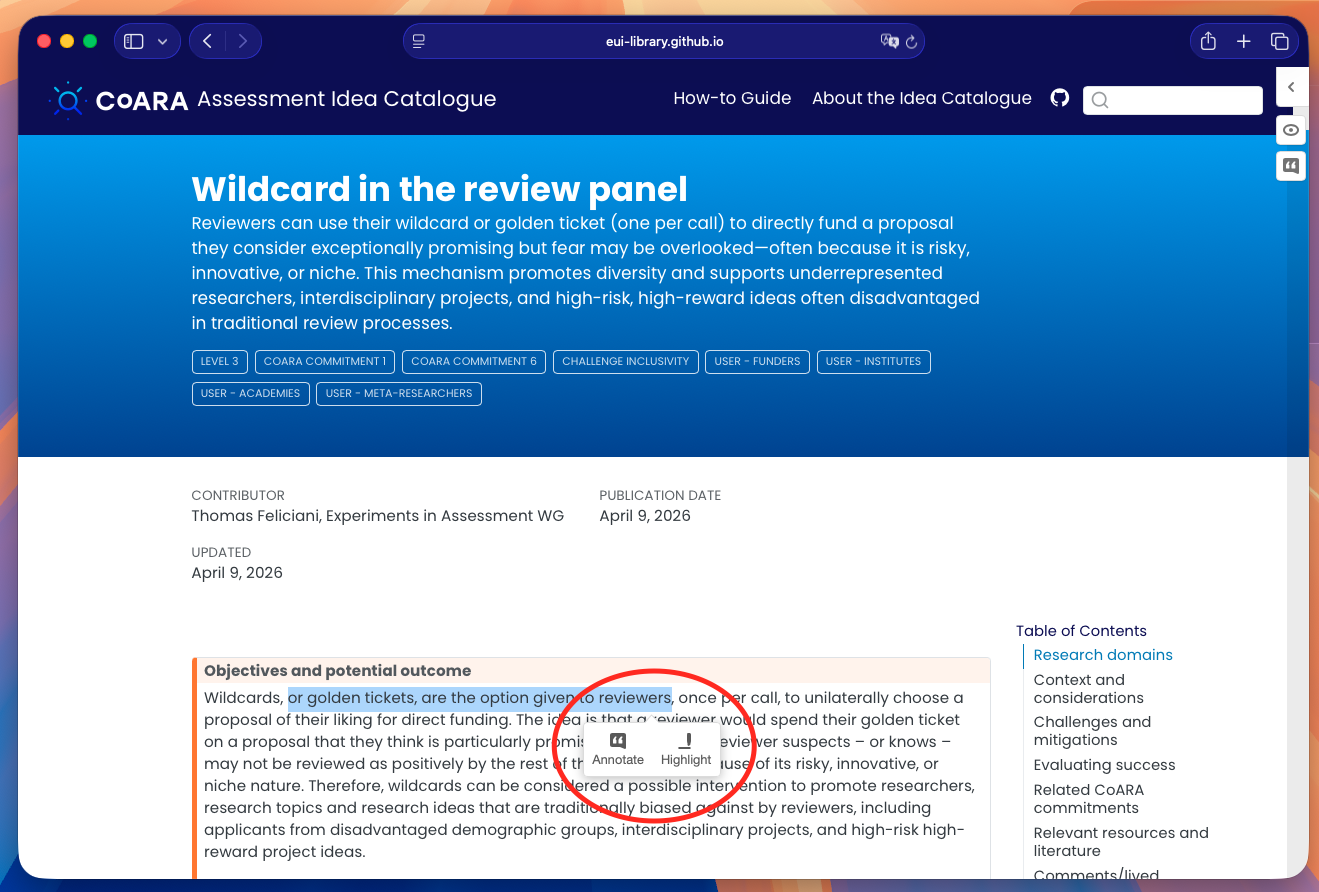
- Click Annotate to open the annotation editor in the sidebar.
- Type your comment in the text box. You can use Markdown for formatting (bold, lists, links, etc.).
- Optionally add tags to categorise your annotation.
- Choose the visibility:
- Public — visible to everyone with Hypothesis.
- Only me — private note.
- Group — visible only to members of a shared group (see §5).
- Click Post to Public (or the relevant group) to save.
The annotated text will appear highlighted in yellow on the page; clicking it reopens the annotation in the sidebar.
4. Adding a Page Note
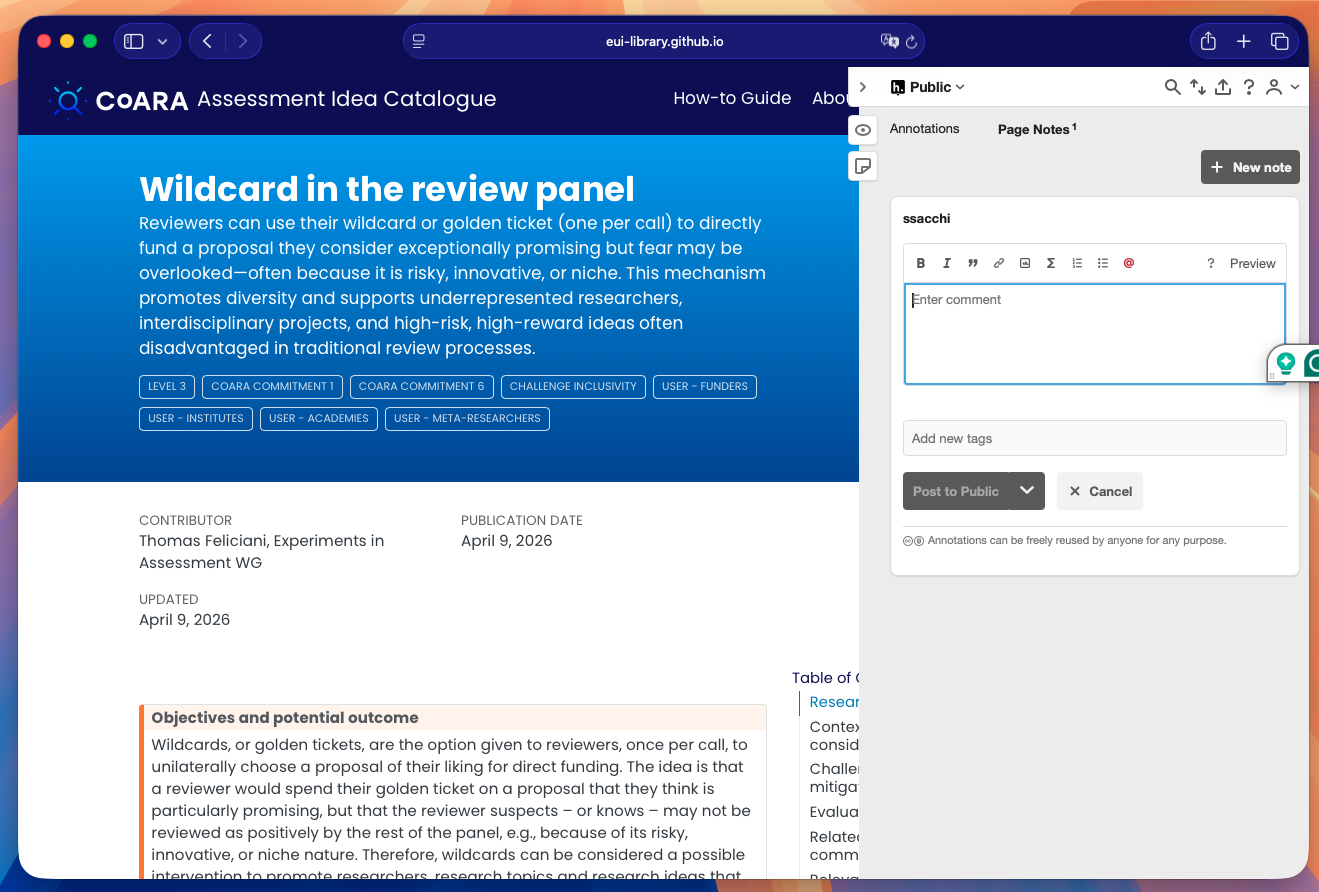
A Page Note is a comment on the page as a whole, not anchored to specific text.
- Open the Hypothesis sidebar.
- Click the Page Notes tab.
- Click the pencil / new note button.
- Write your note and post it (same visibility options as annotations).
5. Highlighting without a comment
- Select some text.
- Click Highlight in the popup toolbar.
The text is highlighted in your personal view immediately. Highlights are private by default — they are visible only to you when logged in.
6. Replying to an existing annotation
- Open the sidebar (annotations from others appear listed automatically when you load the page).
- Click any annotation to expand it.
- Click Reply below the annotation text.
- Type your response and post it.
7. Annotation groups
If you are working collaboratively, you can create or join a Hypothesis group to share annotations only with your team:
- Click the group selector at the top of the sidebar (it shows Public by default).
- Choose New private group or paste an invite link shared by a colleague.
- All future annotations posted to this group will be visible only to members.
Quick reference
| Task | How |
|---|---|
| Open sidebar | Click the › arrow or the icons on the right edge |
| Log in | Click Sign up / Log in in the sidebar header |
| Annotate text | Select text → Annotate → write comment → Post |
| Highlight text | Select text → Highlight |
| Add a page note | Page Notes tab → pencil icon → write → Post |
| Reply | Click an annotation → Reply |
| Change visibility | Use the group/visibility dropdown before posting |
| Share an annotation | Click the share icon inside an annotation card |
For more information on Hypothesis, visit the Hypothesis Help Centre.